Our kids love their iPads. They learn to tap and swipe in seconds, and there’s plenty for them to do as they get older, from playing educational games and drawing with an Apple Pencil to doing homework and watching movies on long car journeys. The harder part is choosing which iPad to buy.
The standard iPad (A16) is the one we’d buy for most kids. It starts at $449/£429 with 128GB of storage, and its 11-inch screen gives them plenty of room for games, schoolwork, and drawing.
The 8.5-inch iPad mini (A20 Pro) is our compact pick. It’s easier for small hands to hold and takes up less room in a bag, but it starts at $699/£699. For $50/£50 more, the 11-inch iPad Air (M4) gives older kids more screen space for drawing, editing video, and working on school projects. It also supports Apple’s Magic Keyboard for longer writing assignments.
Alongside our top picks, we explain whether you should buy an iPad for your child, whether it’s worth paying extra for cellular, how much storage to get, and how to set limits with parental controls.
Now is a great time to buy an iPad in the Black Friday sales.
PRICES CHECKED NOVEMBER 28, 2026 – Deals change quickly, so we will update this block throughout the Black Friday weekend
Start with what your child will use the iPad for. A smaller iPad is easier for little hands to hold while reading or playing games, especially on trips. A larger screen gives kids more room to draw, edit video, or type up school assignments.
128GB of storage is enough for most kids. Consider 256GB if your child plays several large games, downloads lots of movies for trips, or regularly records and edits video. Downloaded games and movies still take up space on the iPad, even if you pay for iCloud storage.
The standard iPad has plenty of power for everyday games, school apps, and videos. Apple Intelligence, which is missing from the standard iPad, is available on the iPad mini and iPad Air and may be useful for older kids who use their iPad for schoolwork or creative projects. Writing Tools can help them spot spelling and grammar mistakes in their own drafts or turn a long set of notes into a list of key points. In Photos, Clean Up can remove a distracting object from a picture they want to use in a presentation. Parents can restrict features such as Writing Tools and AI image creation through Apple’s parental controls. For help setting up parental controls, see “Should you get an iPad for your child?” below.
If it’s your child’s first iPad, set aside some of your budget for a sturdy case.
| iPad Model | Best For | Key Features |
|---|---|---|
| iPad (A16, 11th Gen) | Most kids | 11-inch display, 128GB of starting storage, lowest price in the current lineup |
| iPad mini (A20 Pro) | Small hands and travel | 8.5-inch OLED display, 0.56-pound (255g) Wi-Fi model, IP67 dust and water resistance |
| 11-inch iPad Air (M4) | Schoolwork and creative projects | Fully laminated 11-inch display, M4 chip, Apple Pencil Pro and Magic Keyboard support |
For most children, the standard iPad has enough power and screen space for everyday apps, games, and homework. Choose the iPad mini if your child will often use it one-handed for reading or carry it on trips, where the smaller size makes a real difference.
The 11-inch iPad Air is worth considering for older kids who regularly draw, edit video, or type up school assignments. There’s also a 13-inch Air if they’d benefit from more room to work. For most school and creative projects, the Air has plenty of power without the expense of an iPad Pro.

Why the iPad is a good choice: The standard iPad is the one we’d buy for most kids. The A16 chip is fast enough for games, streaming, and educational apps, and the 11-inch screen gives kids plenty of room to draw, follow a lesson, or watch a movie. It starts with 128GB of storage, which should be enough for most children.
If you want more of a laptop experience, you can use the iPad with Apple’s Magic Keyboard Folio case. You can also pair it with a third-party Bluetooth keyboard and mouse if you don’t fancy Apple’s premium pricing. Check out our roundup of the Best iPad Keyboards for some excellent options.
The Apple Pencil (USB-C) is a good choice for handwriting practice and casual doodling. For kids who want to vary the thickness of their lines by pressing harder, the first-generation Apple Pencil offers pressure sensitivity. It requires a USB-C to Apple Pencil Adapter to pair and charge.
The iPad comes in four bright, bold colors (Blue, Pink, Yellow, and Silver), so your child can pick one that reflects their personality or just the one with the hues they like the most.
Read our full Apple iPad (A16) review
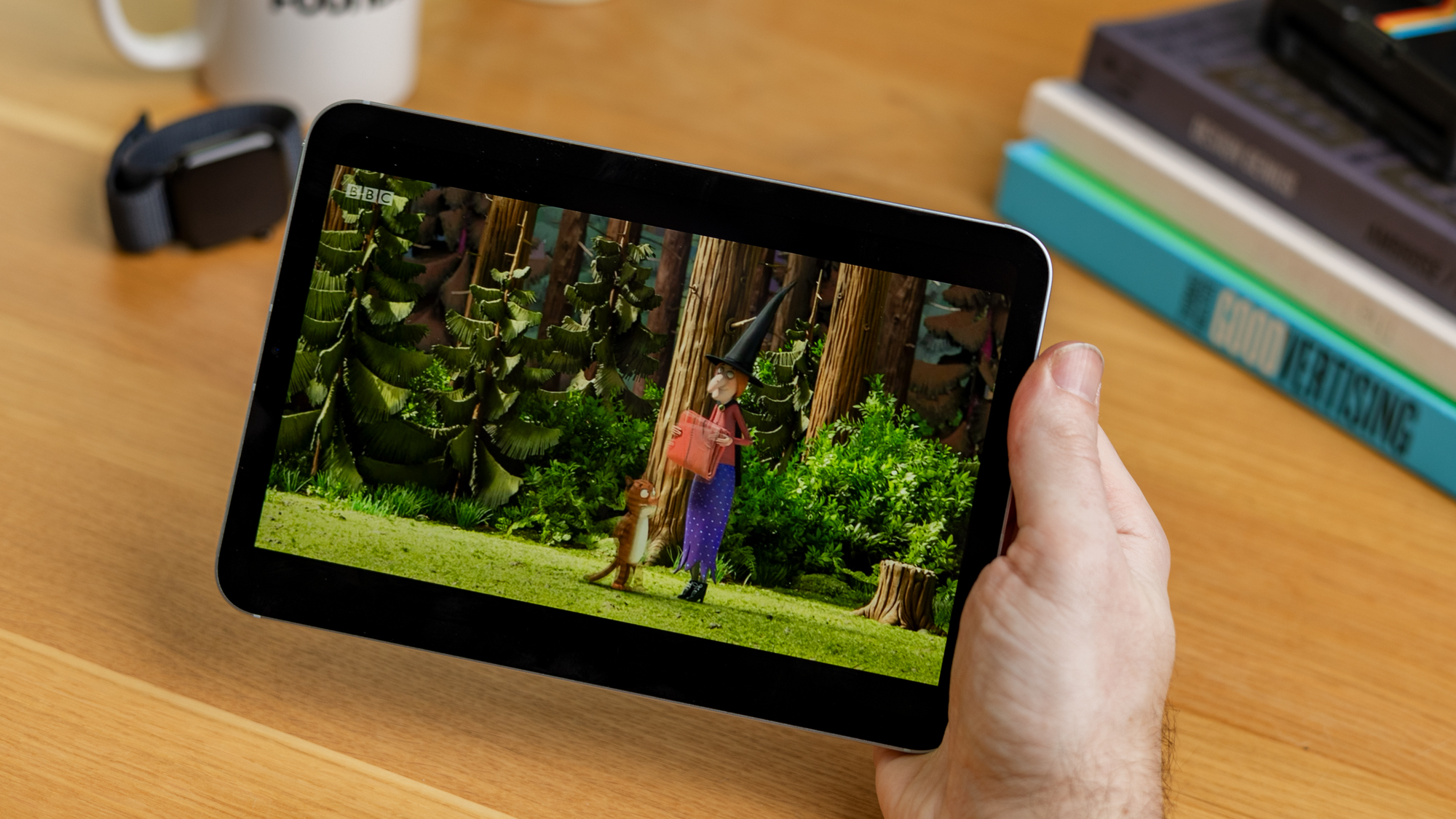
Why the iPad mini is a good choice: The iPad mini (A20 Pro) is our pick if you want an iPad that’s easy for small hands to hold. The Wi-Fi model weighs just 0.56 pounds (255g), and it’s narrower and lighter than the previous mini despite having a larger, brighter 8.5-inch OLED screen. It slips easily into a small backpack and is a comfortable size for reading, playing games, or watching a movie in the back seat. Its IP67 dust and water resistance is welcome when there’s a drink within elbow range.
The A20 Pro chip has plenty of power for demanding games and supports Apple Intelligence. The mini also works with the Apple Pencil (USB-C) and Apple Pencil Pro, so younger kids can doodle and older kids can sketch or jot down notes. The compact screen works well for quick notes, but it can feel cramped when your child needs to read a worksheet and write an answer side by side.
At $699/£699, we’d buy the mini if portability is the priority. The standard iPad (A16) is better value for most kids, especially if they’ll mostly use it at home. For $50/£50 more than the mini, the 11-inch iPad Air (M4) gives older kids more space for PDFs, drawing, and school projects, plus the option to add Apple’s Magic Keyboard for longer assignments. If you want a small iPad for less, look for a deal on the previous iPad mini (A17 Pro).
Read our full Apple iPad mini (A20 Pro) review
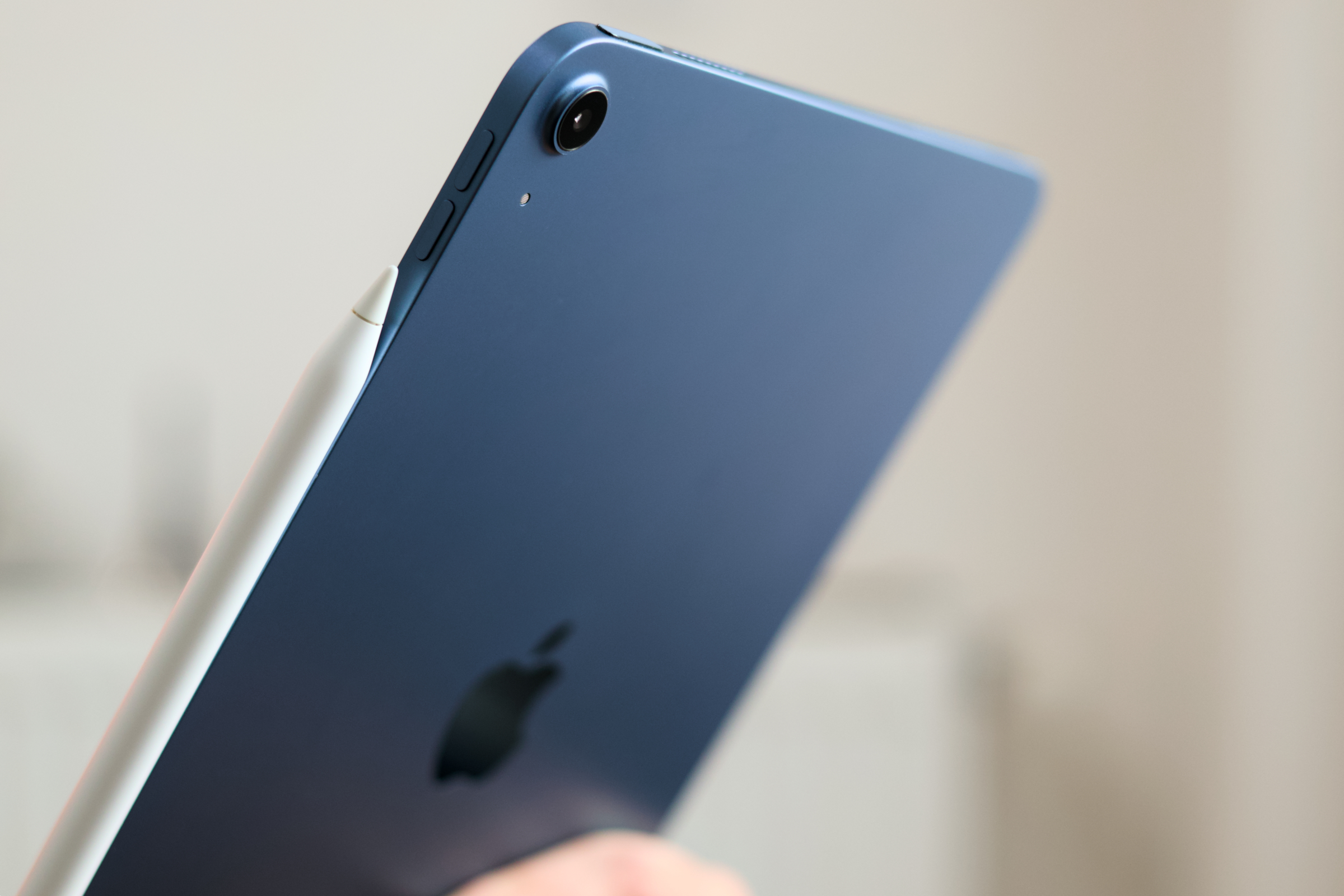
Why the iPad Air is a good choice: The 11-inch iPad Air (M4) is the upgrade we’d recommend for a tween or teen who regularly uses an iPad for schoolwork and creative projects. It gives them more room than the iPad mini to mark up a PDF, draw, or keep a textbook and their notes open side by side. And at 1.02 pounds (464g) for the Wi-Fi model, it’s still light enough to carry in a school bag.
The fully laminated display brings the image closer to the Pencil tip, so writing and drawing feel more natural than on the standard iPad. Both Air sizes support the Apple Pencil (USB-C) and Apple Pencil Pro. The optional Magic Keyboard makes longer assignments easier to type, but factor its cost into your budget and check that the iPad can run the apps your child’s school requires. See which Apple Pencil works with your iPad.
The M4 chip has plenty of power for demanding games, video editing, and working in several apps, and it supports Apple Intelligence. Budding filmmakers can shoot 4K video at up to 60fps with the 12MP rear camera and edit it on the same device. Apple rates both sizes for up to 10 hours of video playback or web browsing over Wi-Fi, though sustained gaming and video editing can drain the battery faster. The base 128GB should be enough for schoolwork and everyday apps. Consider 256GB if your child downloads lots of games or movies or regularly edits video. Apple also offers 512GB and 1TB models.
The 11-inch Air starts at $749/£749, just $50/£50 more than the iPad mini (A20 Pro). It’s the size we’d choose for school. The 13-inch Air starts at $949/£949 and makes more sense if your child mainly works at a desk and will regularly use the extra space for drawing or working with two apps. Both come in Blue, Purple, Starlight, and Space Gray. For everyday games, videos, and occasional homework, we’d still buy the cheaper standard iPad (A16)
An iPad can be a good buy if it suits your child’s age, maturity, and interests, and you’re comfortable setting limits and supervising how they use it. It’s easy to pick up, especially if they’ve already used your iPhone, and what they can do with it changes as they get older.
Before you hand over the iPad, check the age ratings and privacy settings for the apps your child wants to use. A game may look fine until you find out it has public chat or lets strangers send friend requests. Review those settings together, restrict contact with people they don’t know, and show them how to block and report someone. Make sure they know they can come to you if anything upsets them.
Apple’s parental controls let you manage how much time your child spends in apps, what content they can access, and who they can communicate with in supported apps. Communication Safety can blur detected nudity in shared photos and videos in supported apps. In iPadOS 27, it can also blur detected gore and violent content.
The settings you start with will depend on your child’s age and maturity. For ages 3–7, you might turn off Safari and choose a handful of apps they can use. For ages 8–12, start with communication limits and review the safety settings in their favorite games. For ages 13–17, agree on a daily limit for social apps and schedule Downtime around bedtime.
If you want a starting point for screen time, the American Academy of Pediatrics says families might set limits of less than an hour a day for toddlers and preschoolers and around one to two hours of recreational screen time for school-age children and teens. An hour learning French, finishing homework, or watching gaming videos can serve very different purposes. Pay attention to what your child is doing on the iPad and whether it’s pushing bedtime later or crowding out sleep, exercise, or time with friends.
Apple redesigned its parental controls in iPadOS 27. You can now choose which types of apps are available at different points in the day, such as during school or after homework, and set a shared daily time budget for games, entertainment, and social media. There’s also a new Ask to Browse feature that lets your child request access to a website and lets you approve it from your own device.
Here’s how to set up Parental Controls:
We have more guidance in How to set up an iPad or iPhone for kids.

Yes. With Family Sharing, you can manage Screen Time from your own iPhone or iPad. You can set limits for individual apps, schedule when your child can use them, and restrict access to websites and age-rated content. See How to set up parental controls on a child’s iPad above for the steps.
We’d buy the Wi-Fi model for most kids. For an occasional trip, download shows and games that work offline before you leave, or share your iPhone’s connection using Personal Hotspot if your phone plan supports it.
Wi-Fi + Cellular is worth considering if your child regularly needs internet access away from Wi-Fi and you won’t be there to share your connection. The cellular model costs more up front, and you’ll need a compatible cellular data plan to use that connection.
Yes. We’d choose 128GB for most kids, especially if they mainly stream video, use school apps, and play a few games. Pay for 256GB if your child keeps several large games installed, downloads lots of shows for trips, or records and edits video regularly.
iCloud can help with photos and files, but installed games and videos downloaded for offline viewing still use space on the iPad. If you’re buying refurbished, we’d aim for at least 128GB. See iCloud prices.
If those prices seem steep, Apple offers education pricing in the U.S. and U.K. to eligible college and university students, including those who’ve been accepted, and to parents buying on their behalf. Having a child in elementary or high school doesn’t qualify you on its own. If you’re shopping for college or university, see our guides to getting an Apple student discount and the best iPads for students. If you’re buying your child their first tablet, check our roundup of the best iPad deals before paying full price.
If you have older children, then take a look at our guide to the best iPads for students.
If you’re shopping secondhand, check the generation before you buy. The 8th-generation iPad, 5th-generation iPad mini, 3rd-generation iPad Air, and earlier models in those lines can’t run iPadOS 27. The 9th-generation iPad still supports it, but we’d pay a little more for a 10th-generation model.
A refurbished or hand-me-down 10th-generation iPad is a good first tablet for games, videos, and homework. The 64GB version is fine for light use, but that storage can fill up quickly if your child downloads lots of games or movies. If you’re paying extra for the 256GB version, compare its price with a new iPad (A16), which starts at 128GB.
If you want something smaller, look for a refurbished iPad mini. For more room to draw or do schoolwork, consider an 11-inch iPad Air. Compare the refurbished price with the best deal you can find on a new model with the same amount of storage. If the saving is small, we’d buy the newer iPad.
You can sometimes find recent models for around 15% off in Apple’s Certified Refurbished store. Apple’s refurbished iPads come with a new battery, a new outer shell, and the same one-year limited warranty as a new iPad. We’ve bought several refurbished models from Apple over the years, and they’ve all been as good as new.
If a third-party seller offers a better price, check what it guarantees about battery condition, how long the warranty lasts, and whether you can return the iPad. See our guide to where to buy a refurbished iPad.